Connect your AI app.
Connect Ozem to ChatGPT, Claude, or Grok and build live websites from a single prompt. Copy your MCP Server URL from the Account Dashboard, then follow the steps for your app.
You'll need your MCP Server URL. Grab it from your Account Dashboard.
-
1
Log in to your account at chatgpt.com.
-
2
Click your profile, then open the Settings menu at the bottom left.
-
3
Click Plugins and enable Developer mode.
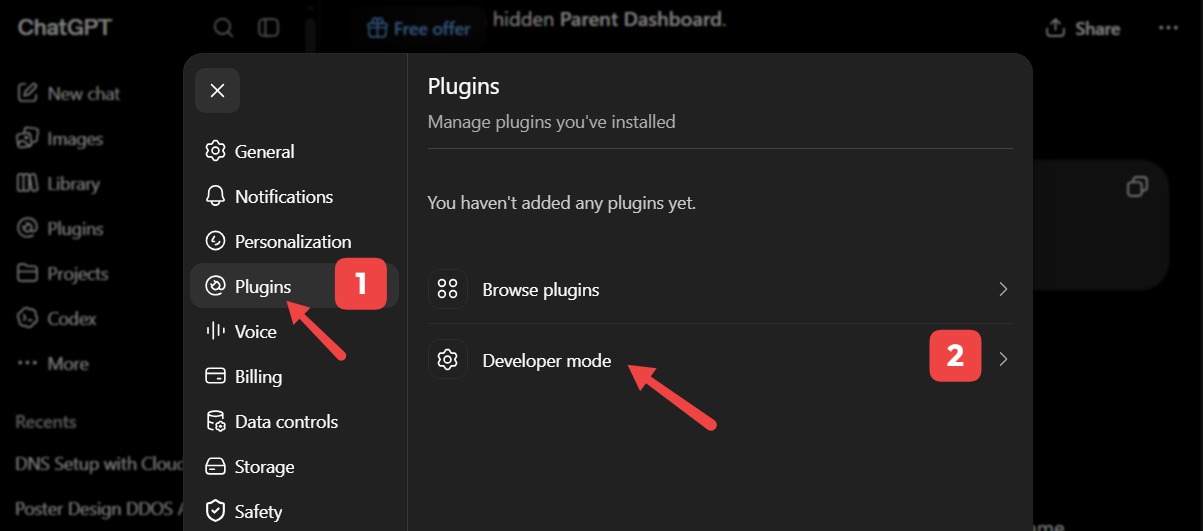
-
4
In the Developer mode section, toggle on Enable Dev Mode.
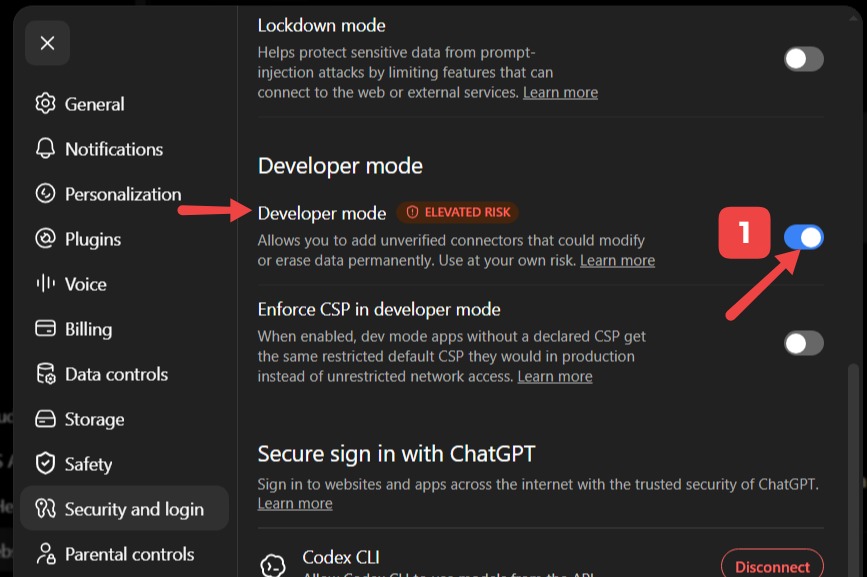
-
5
Go to the Plugins menu and click the + (Plus) button.
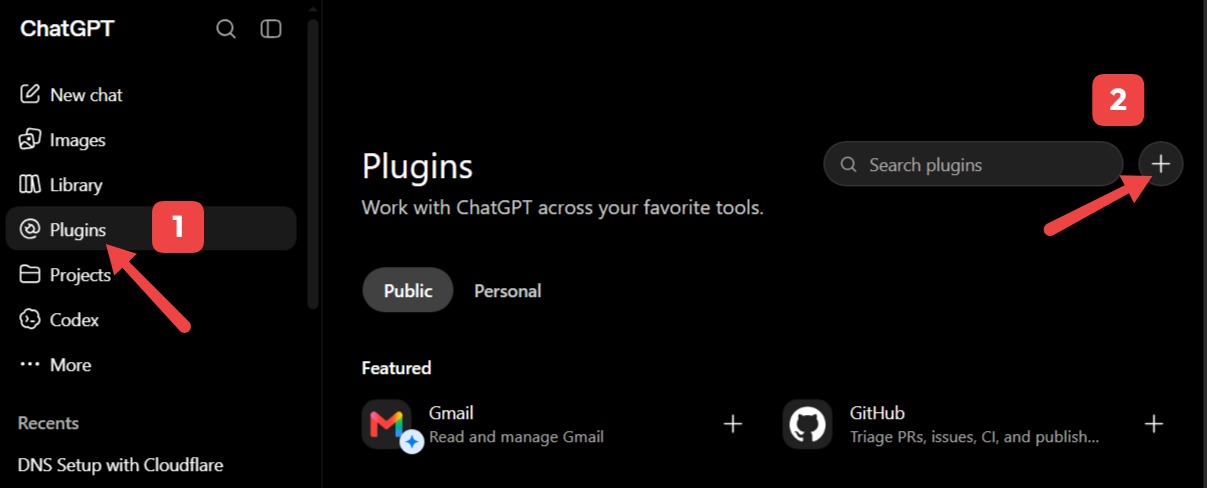
-
6
In the New Plugin popup, fill in the Name and MCP Server URL (get the URL from your Account Dashboard), check the consent box, then click Create.
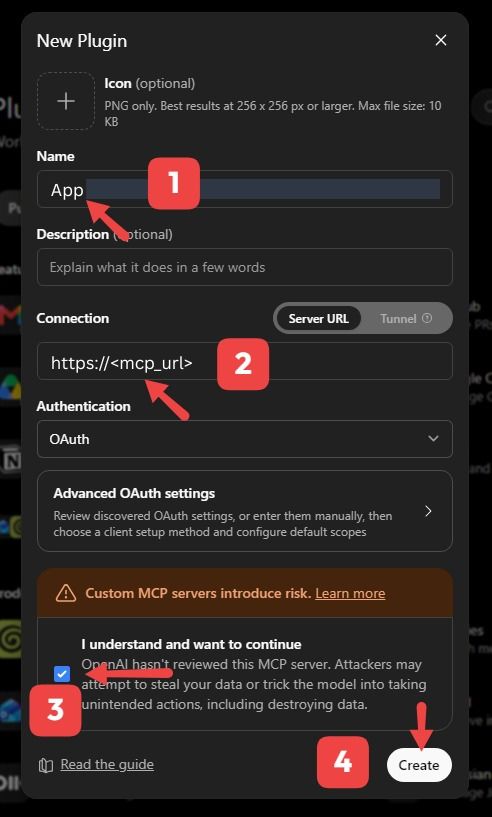
-
7
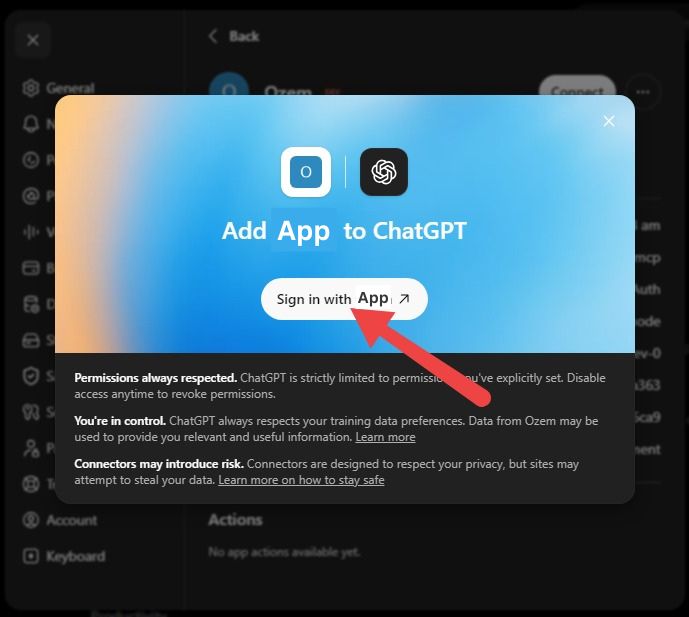
Click Sign in with Ozem.
-
8
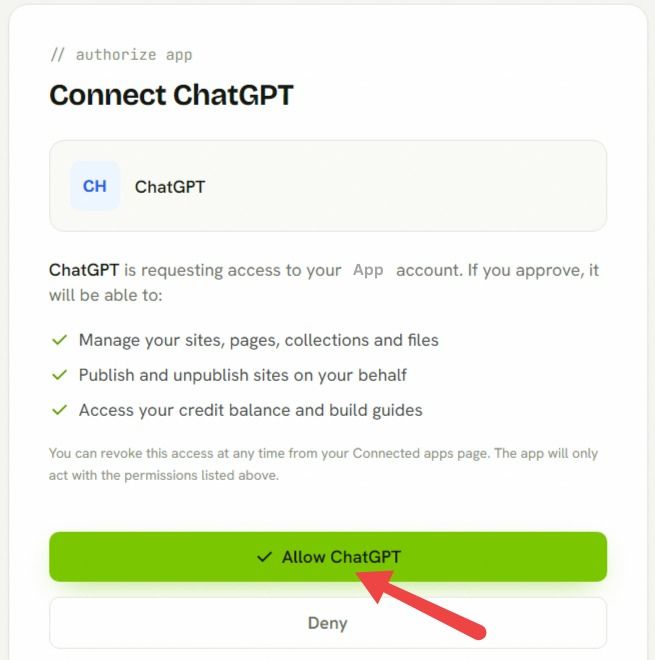
Log in and connect by clicking Allow ChatGPT.
-
9
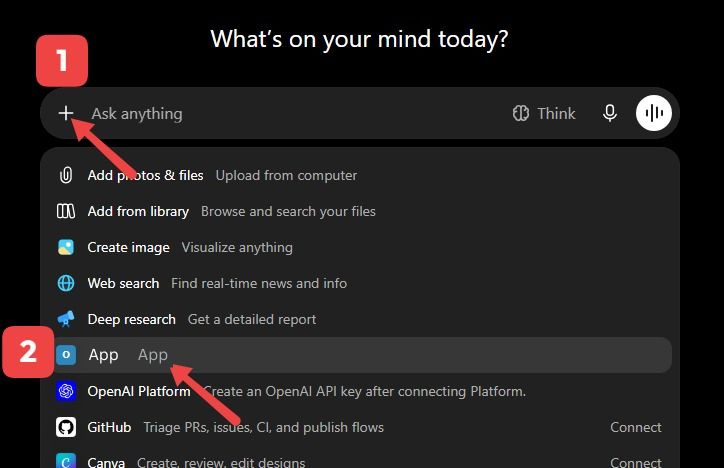
Build a project by mentioning the plugin, or simply prompt: "Use Ozem MCP, please build…"
-
10
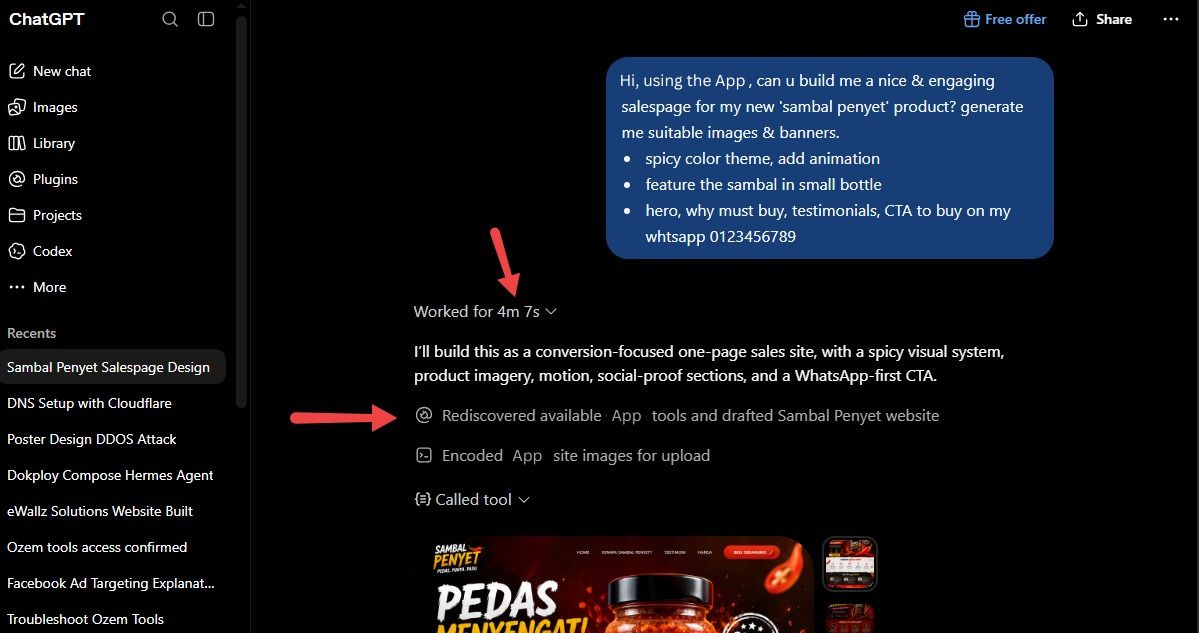
ChatGPT will propose and start using the tools.
-
11
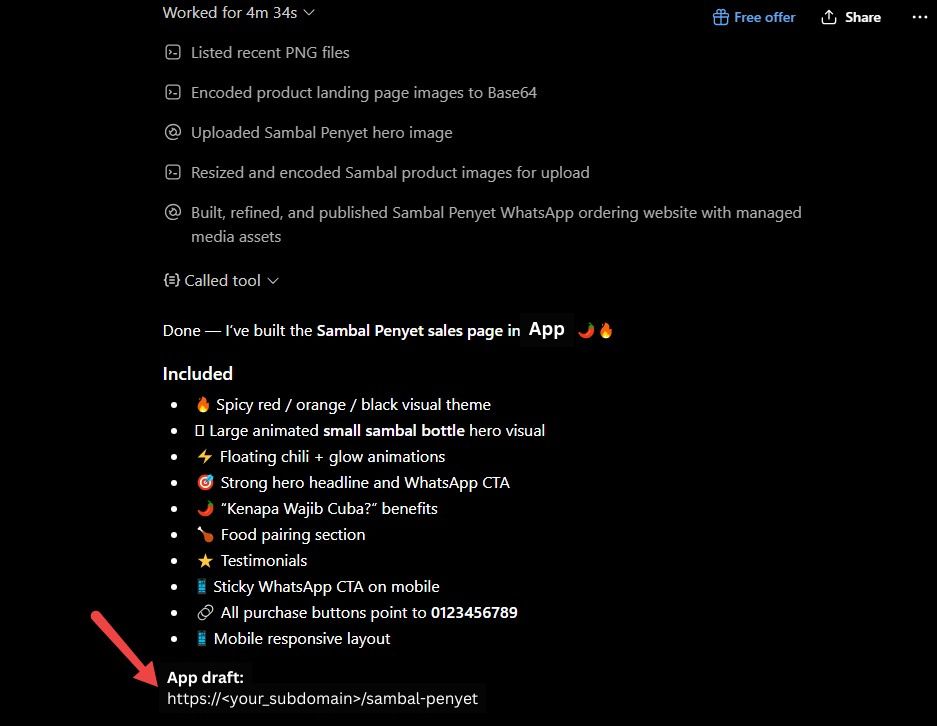
Once done, ChatGPT will share the published web URL for preview.
-
12
Continue refining your project by chatting with ChatGPT to make changes or any adjustments.
-
1
Log in to your account at claude.ai.
-
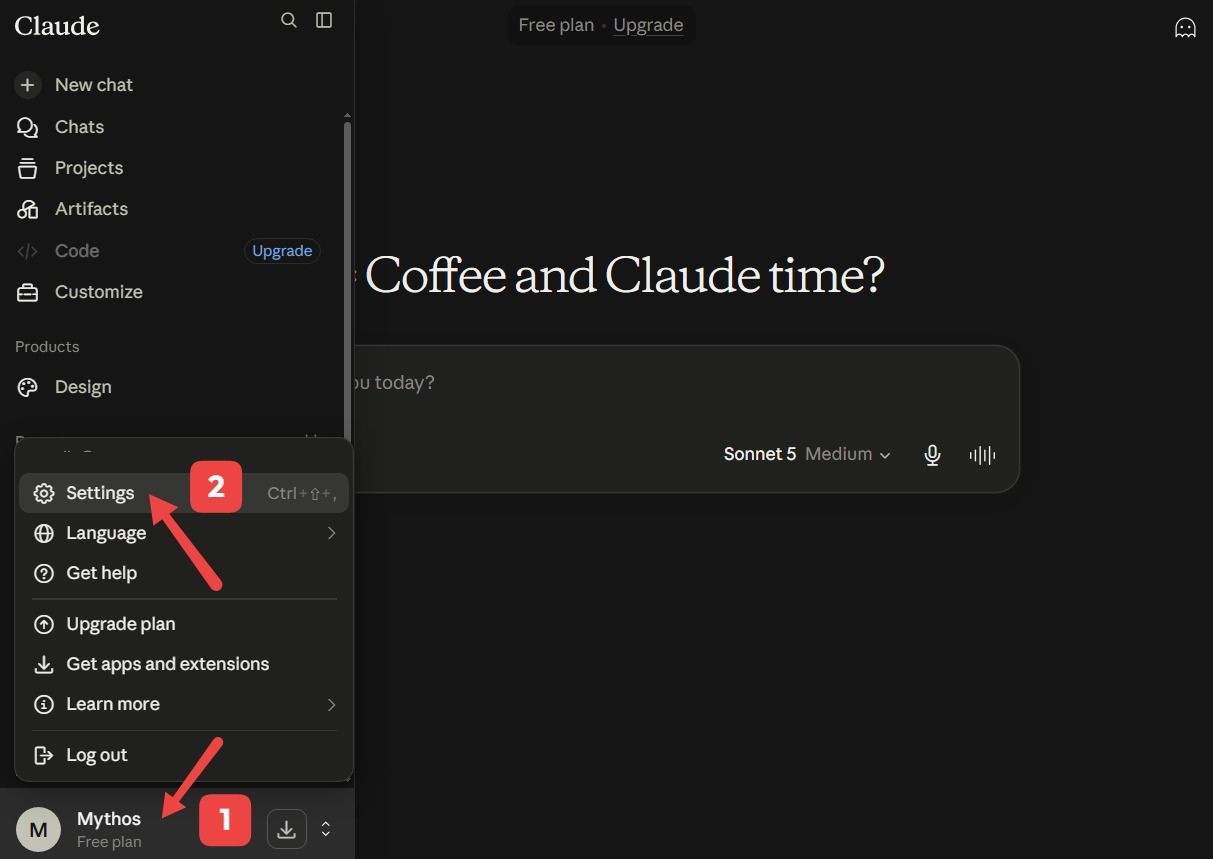
2
Click your profile, then open the Settings menu at the bottom left.
-
3
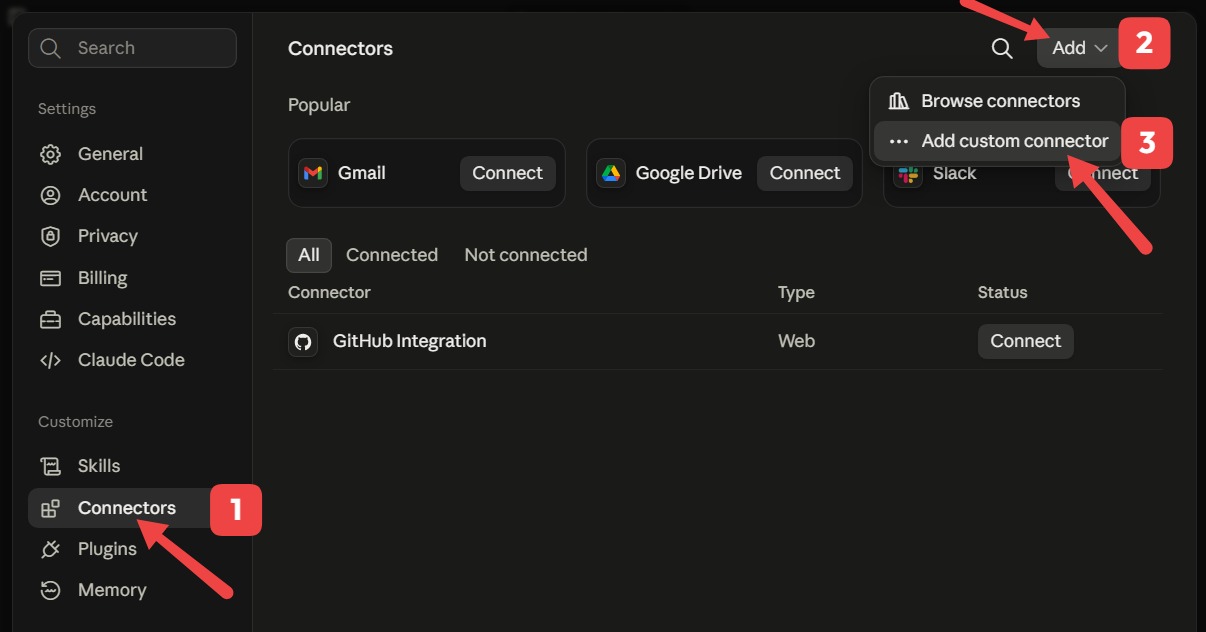
Click Connectors, then Add Custom Connector.
-
4
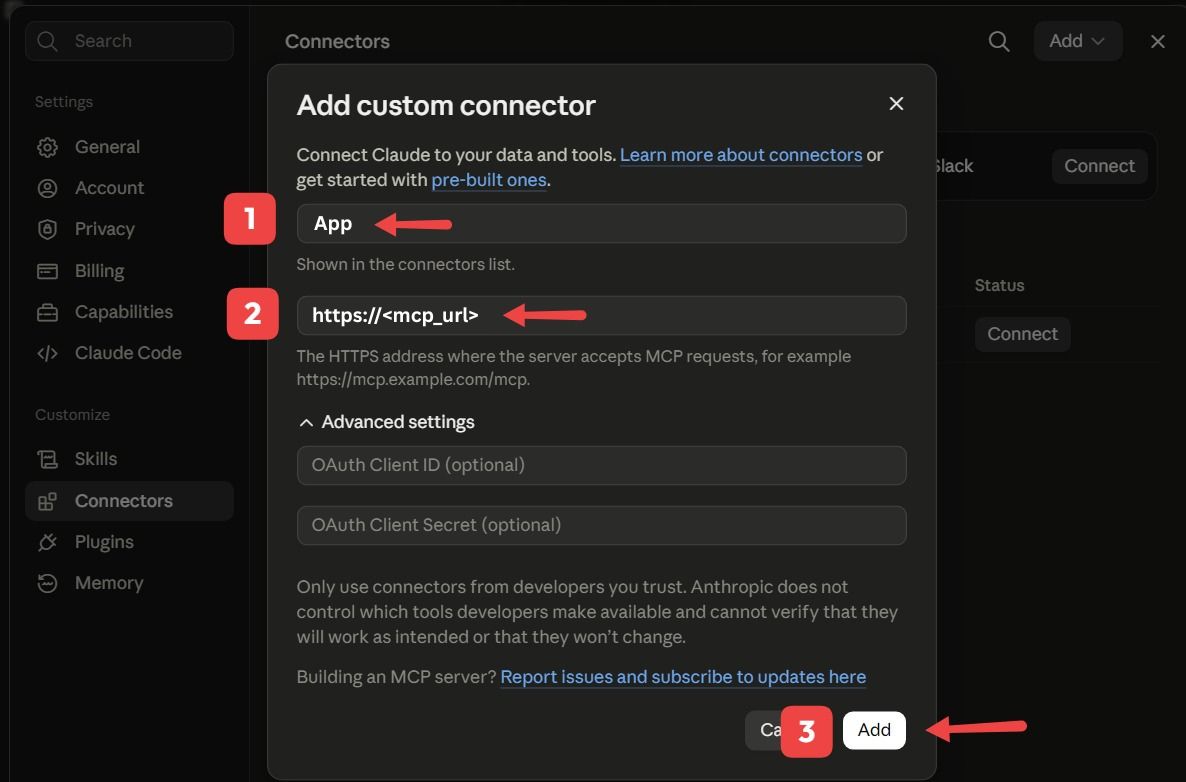
In the Add custom connector popup, fill in the Name and MCP Server URL (get the URL from your Account Dashboard), then click Add.
-
5
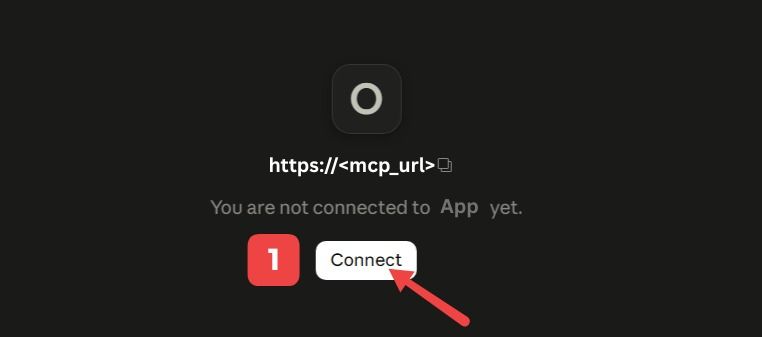
Click Connect to connect to the MCP server.
-
6
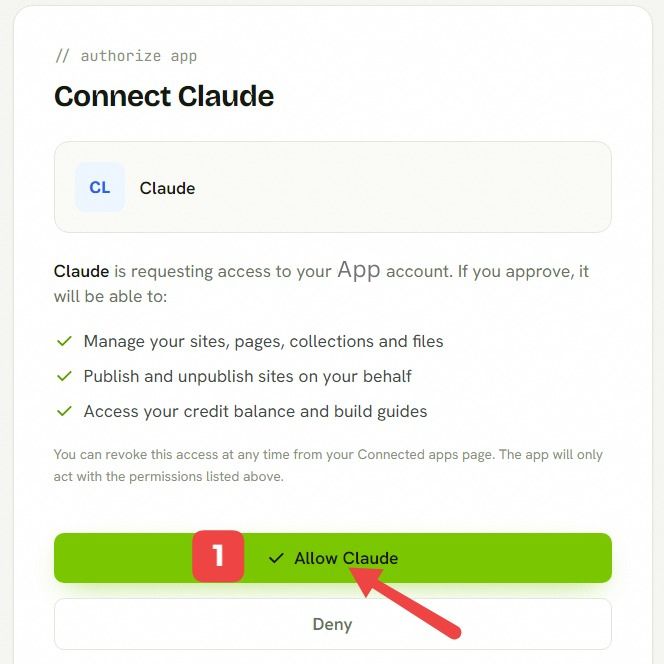
Log in and connect by clicking Allow Claude.
-
7
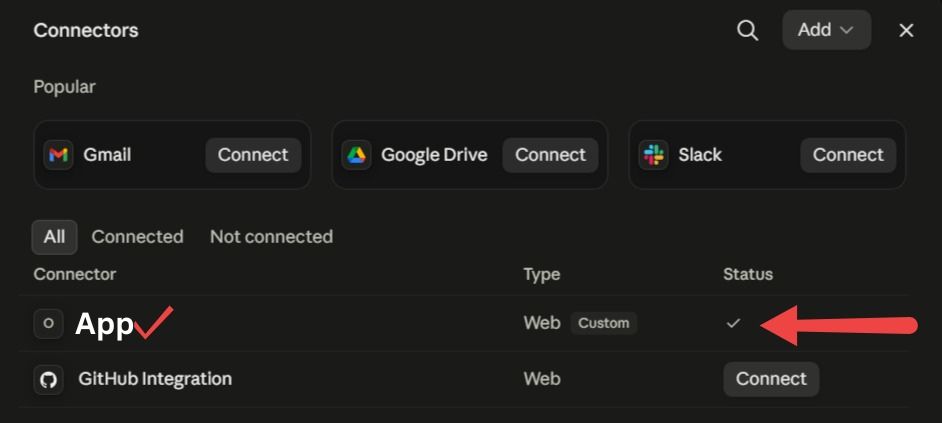
Ozem is now enabled on Claude.
-
8
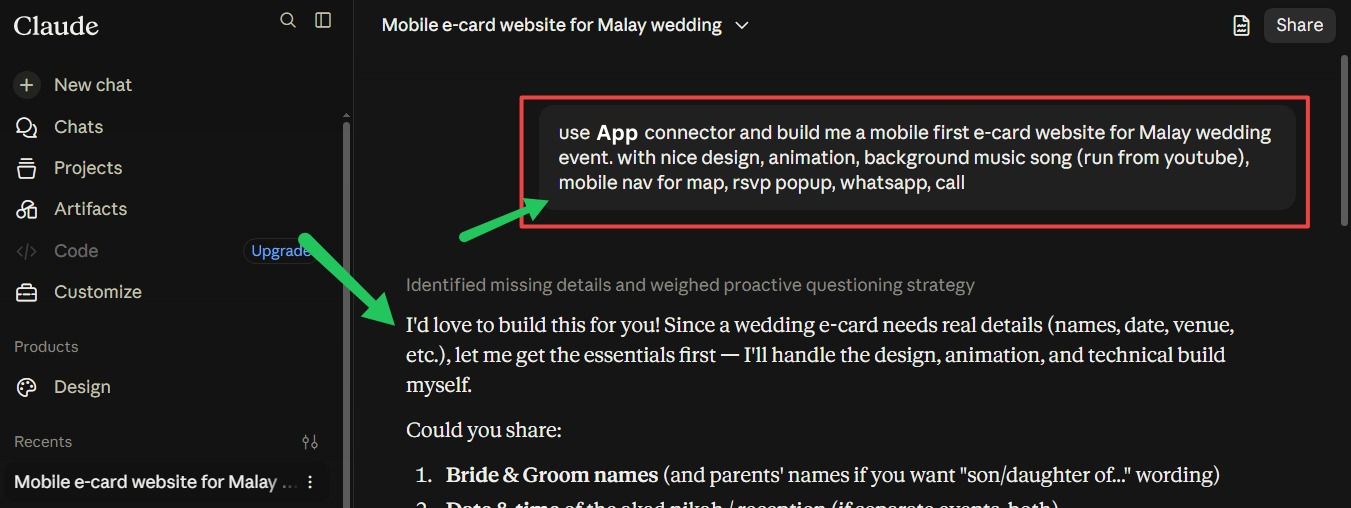
Build a project by mentioning the plugin, or simply prompt: "Use Ozem MCP, please build…"
-
9
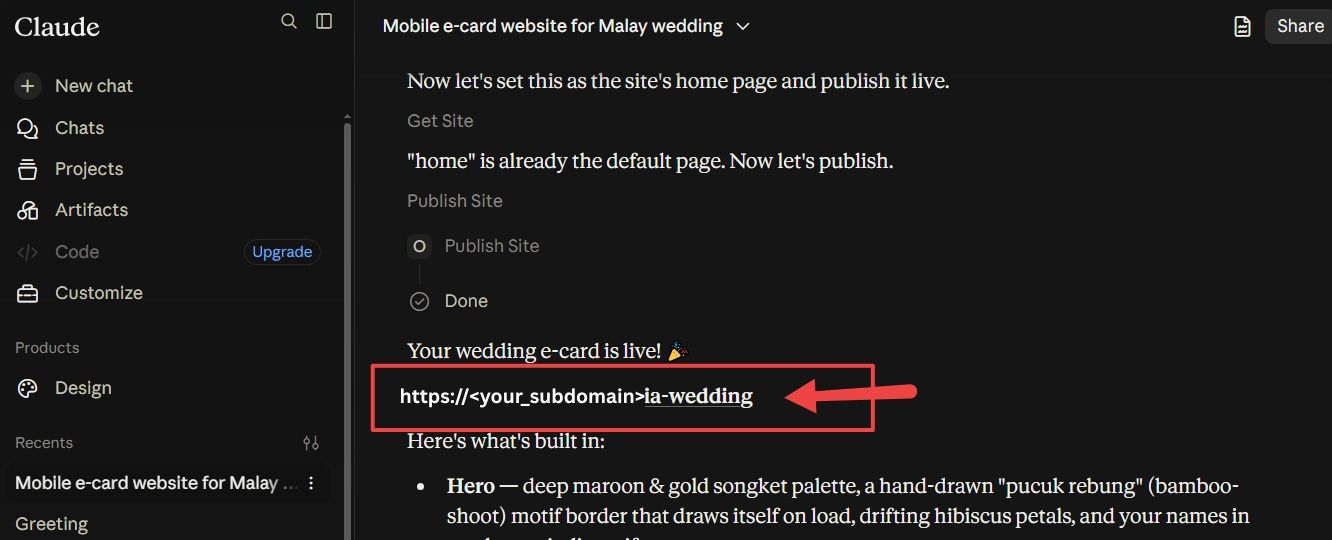
Once done, Claude will share the published web URL for preview.
-
10
Continue refining your project by chatting with Claude to make changes or any adjustments.
-
1
Log in to your account at grok.com.
-
2
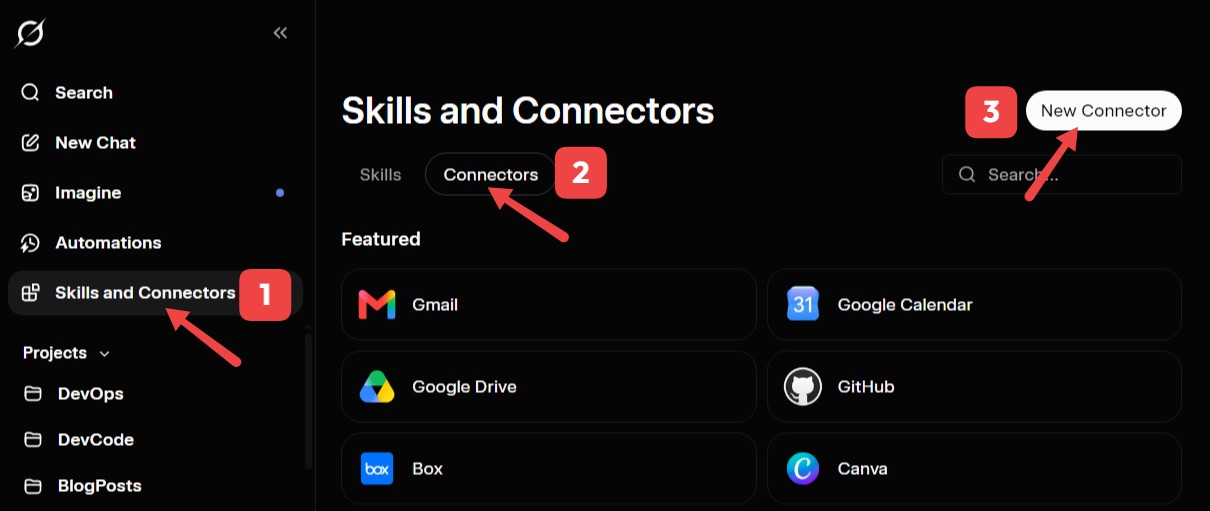
Click the Skills and Connectors menu, then the Connectors tab, then New Connector.
-
3
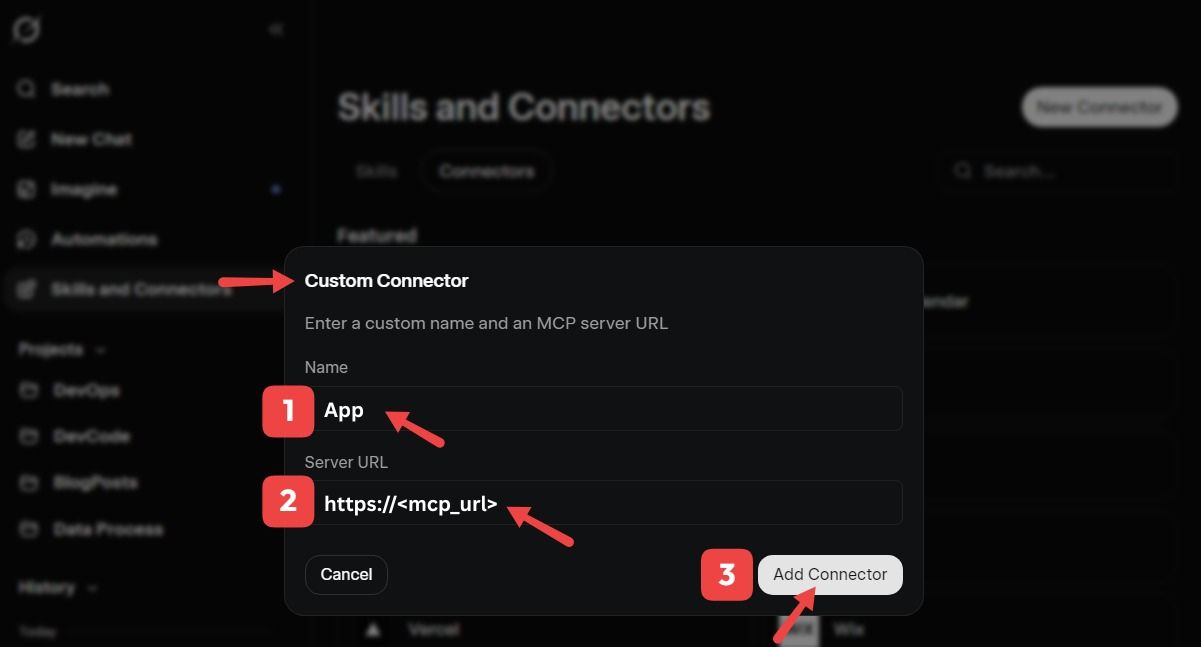
In the Custom connector popup, fill in the Name and MCP Server URL (get the URL from your Account Dashboard), then click Add Connector.
-
4
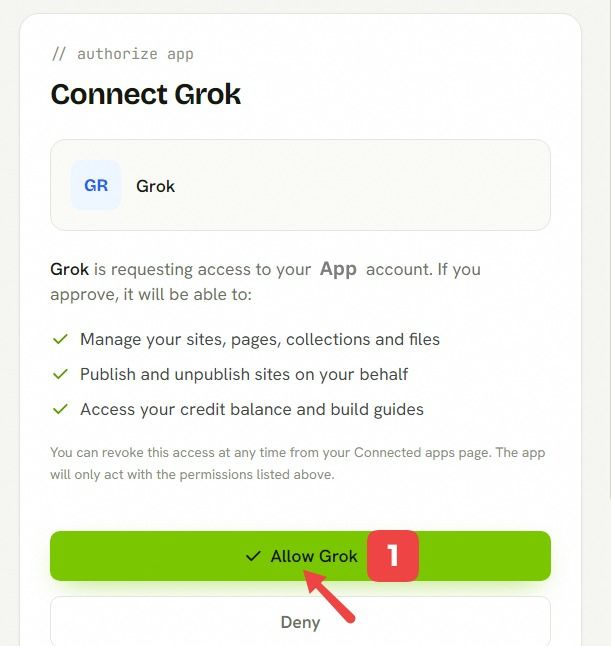
Log in and connect by clicking Allow Grok.
-
5
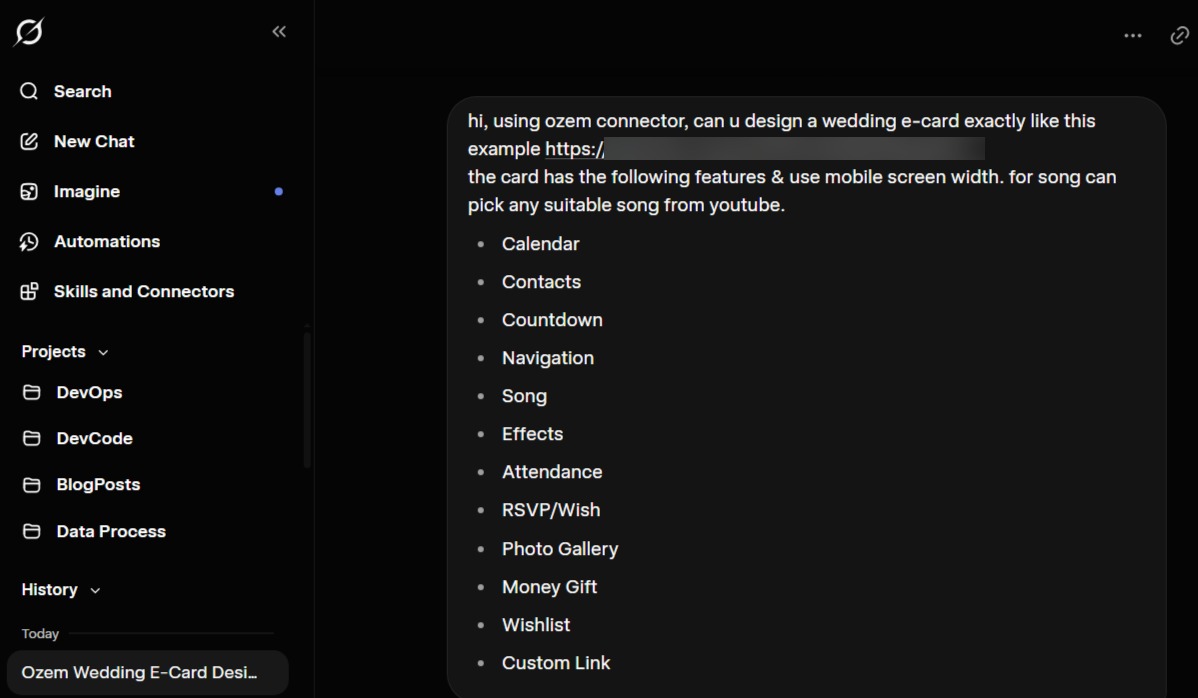
Build a project by mentioning the plugin, or simply prompt: "Use Ozem MCP, please build…"
-
6
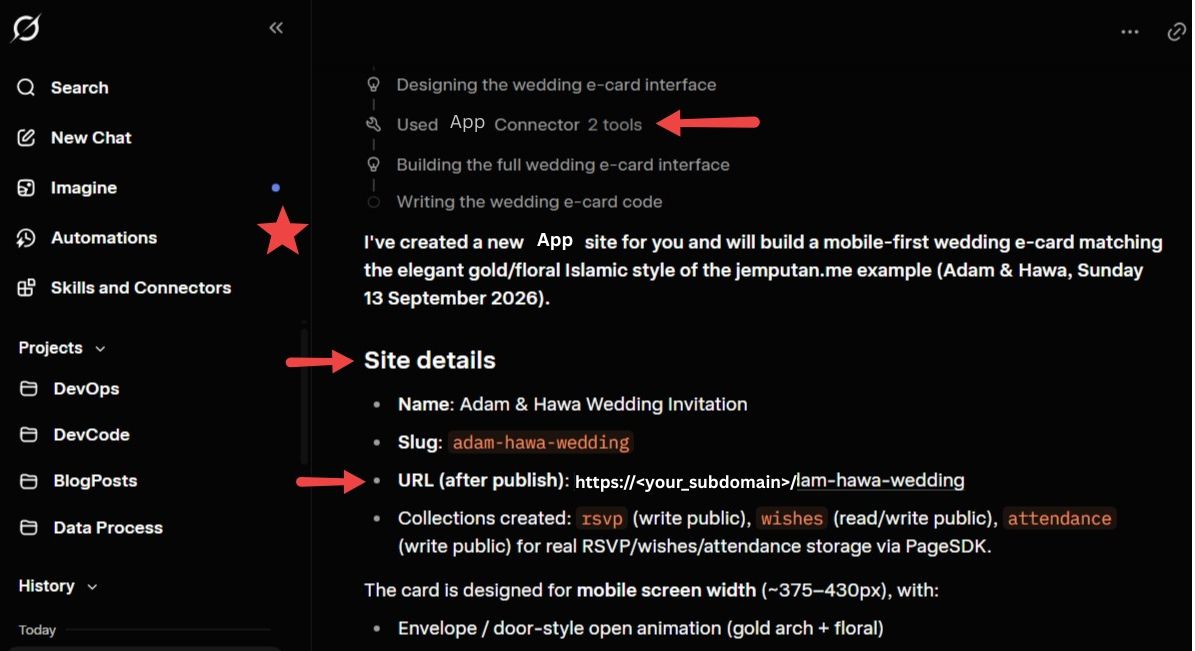
Once done, Grok will share the published web URL for preview.
-
7
Continue refining your project by chatting with Grok to make changes or any adjustments.
Ready to build? Start a new site from your dashboard.
Back to overview →